
Give ResellMaxx access to your Facebook ads
This takes about five minutes. You stay the owner of your ad account and your Page, you never share a password, and you can remove us whenever you like.
Before you start
- Use a computer. Meta hides some of these menus on a phone.
- You need full access to your business portfolio. That is Meta's name for your business account. It used to be called Business Manager.
- Your ad account and your Facebook Page should already be inside that business portfolio. If they are not, follow Add your Page and ad account to your business portfolio first.
Give us access in 7 steps
Open your business settings
Go to business.facebook.com/settings and sign in.
Look at the business name in the top left corner. If you have more than one business, make sure it shows the one that owns your ad account.
Open Partners and click Add
- In the left menu, under Users, click Partners.
- Click the blue Add button in the top right.
- Choose Give a partner access to your assets.
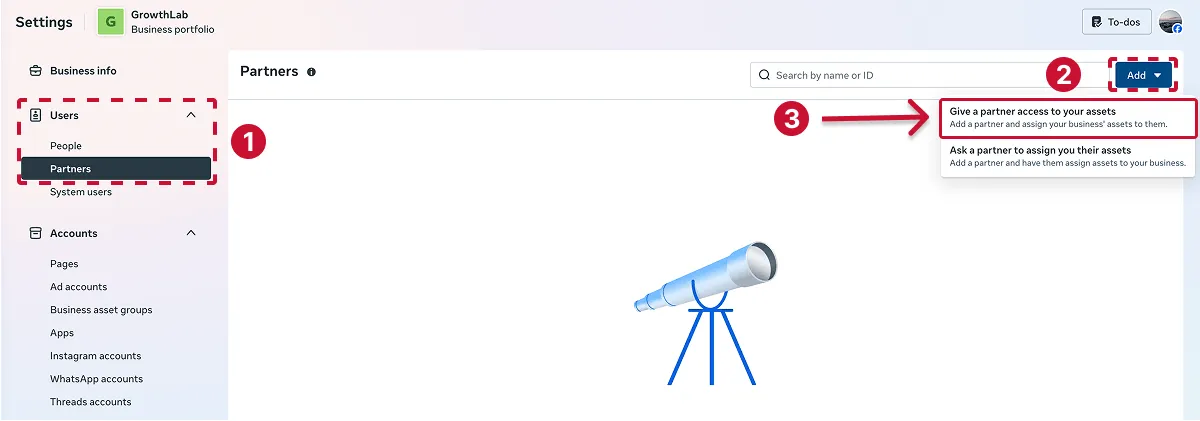
Follow the red numbers 1, 2 and 3. The business name on your screen will be your own. Paste our business ID
Meta asks for the partner's business ID. Paste this number, then continue. Our Meta business is listed as One2Many LLC, so that is the name you will see.
One2Many LLC business ID1049232477294795Share your Facebook Page
- In the left column, click Facebook Pages.
- Tick the box next to your Page.
- On the right, switch on Ads and Insights.
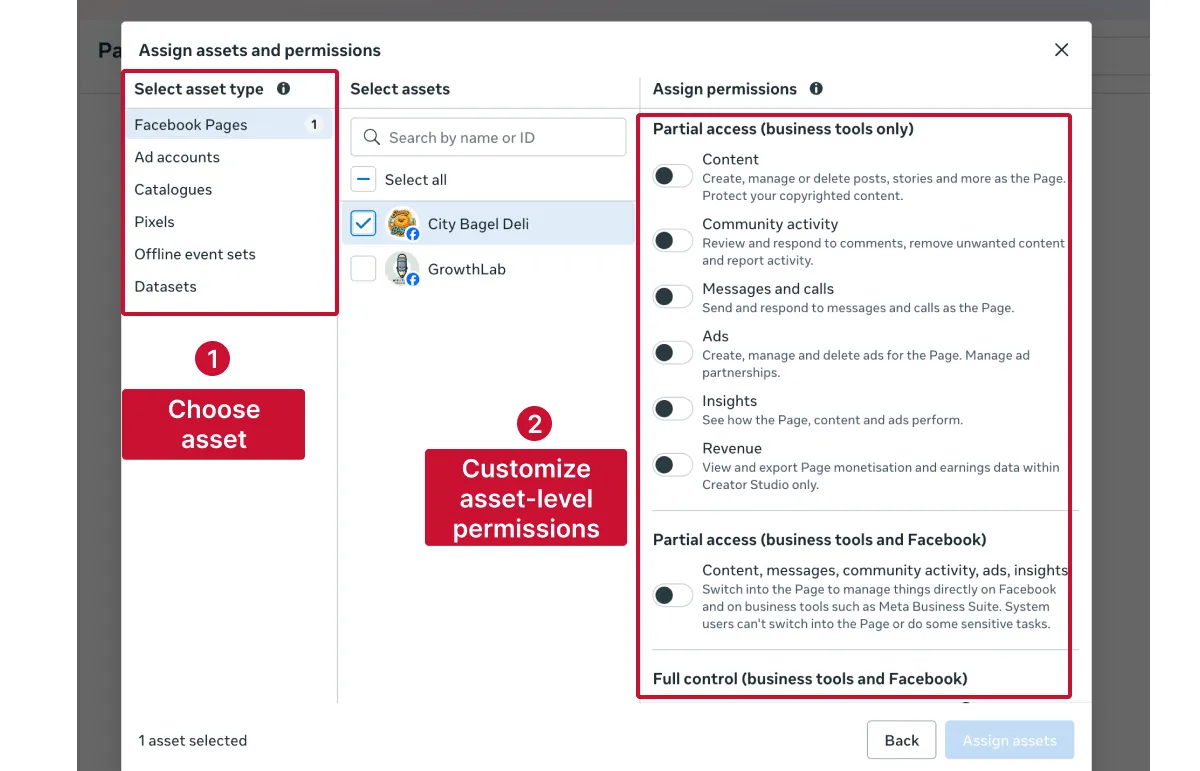
The green boxes are the two switches to turn on. Share your ad account
- In the same window, click Ad accounts in the left column.
- Tick the box next to your ad account.
- On the right, switch on Manage campaigns (ads).
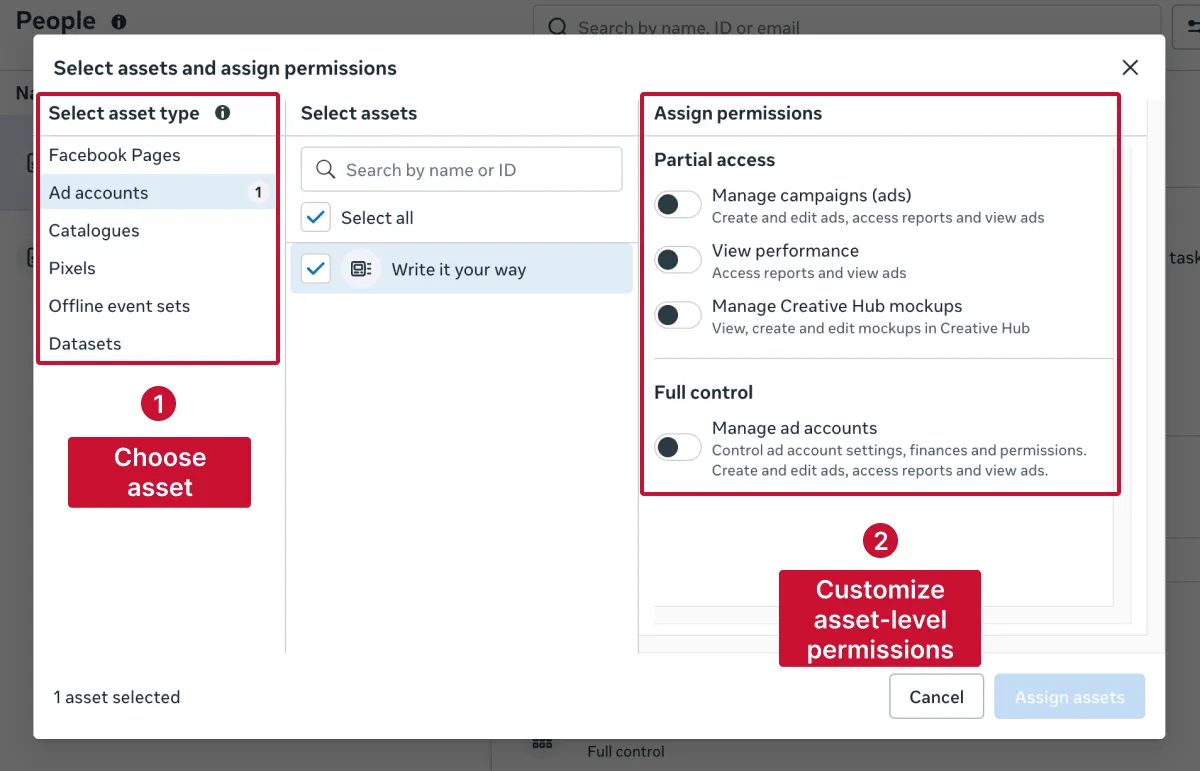
The green box is the switch to turn on. The window title on your screen may read slightly differently. Share your pixel and Instagram
Still in the same window, click Datasets in the left column. If you see Pixels instead, click that. Tick yours and switch on the options that let a partner use and manage it.
If the left column also lists Instagram accounts, tick yours there too.
Nothing listed under Datasets or Pixels? Skip this step and let us know. We will set one up with you.
Click Assign assets
Click the blue Assign assets button in the bottom right of the window. That is the last click.
Then reply to the message we sent you with this guide so we know it is done, or email one2many@courtmcgee.biz. We will confirm on our side that everything came through.
If Meta says another admin has to approve, ask that person to open the same settings page, click Requests in the left menu, and approve it.
If something does not match
- You cannot find Partners.
- You may be in the wrong business (check the name in the top left), on a phone, or signed in as someone without full access.
- Your Page or ad account is not in the list.
- It is not inside your business portfolio yet. Add it first, then come back here. Stuck? Tell us and we will walk you through it. See Add your Page and ad account to your business portfolio.
- Meta says "No business assets added".
- Your Page and ad account are not inside your business portfolio yet, or you are in a different business. Add them first, then try again. See Add your Page and ad account to your business portfolio.
- You do not have a business portfolio at all.
- Tell us. Setting one up is free and we will help you do it first.
- You want to remove us later.
- Go to Partners, click One2Many LLC, and remove the partner. Our access ends straight away.
Screenshots from Leadsie's guide, How to Give Access to a Meta Business Portfolio (October 2026). They show a demo business. Meta changes its menus from time to time, so small wording differences are normal.
Updated November 21, 2026